


How to Manage Connections
Connections are the hub for every external service KaiCalls can use — email, CRM, calendar, phone, and tool providers. Connect one once, and your agents can use it to send messages, sync leads, and book appointments.
What Connections Control
Each connection gives Kai permission to act in one of your other systems. The hub groups them by what they do:
- •Email & Gmail — for sending follow-ups and drafting replies. See Gmail or SMTP / IMAP.
- •Calendar — so Kai can check availability and book appointments. See Google Calendar.
- •CRM — to sync leads and call records into your system of record (such as Pipedrive, HubSpot, Salesforce, Airtable, or GoHighLevel). See CRM Overview, our Pipedrive Guide, or our HubSpot Guide.
- •Phone & memory integrations such as Omi and Twilio.
- •Tool providers & automations such as Zapier, Webhooks, and the Tool Library.
- •All integrations — see the full Integrations Directory covering all 19 supported systems.
Connect a Service
- Go to Dashboard > Settings > Connections.
- Find the service you want to connect.
- Click Connect and complete the provider's authorization flow.
- Return to Connections and confirm the service shows as connected.
- Open any related settings the integration needs — for example choosing which calendar to use, or mapping CRM fields.
Disconnect or Reconnect
- Open Dashboard > Settings > Connections.
- Use disconnect when a provider should no longer access KaiCalls.
- Reconnect when permissions expire, provider settings change, or Kai reports that a service is unavailable.
- Test the workflow that uses the connection after reconnecting.
Visual Walkthrough: How CRM Connections Work
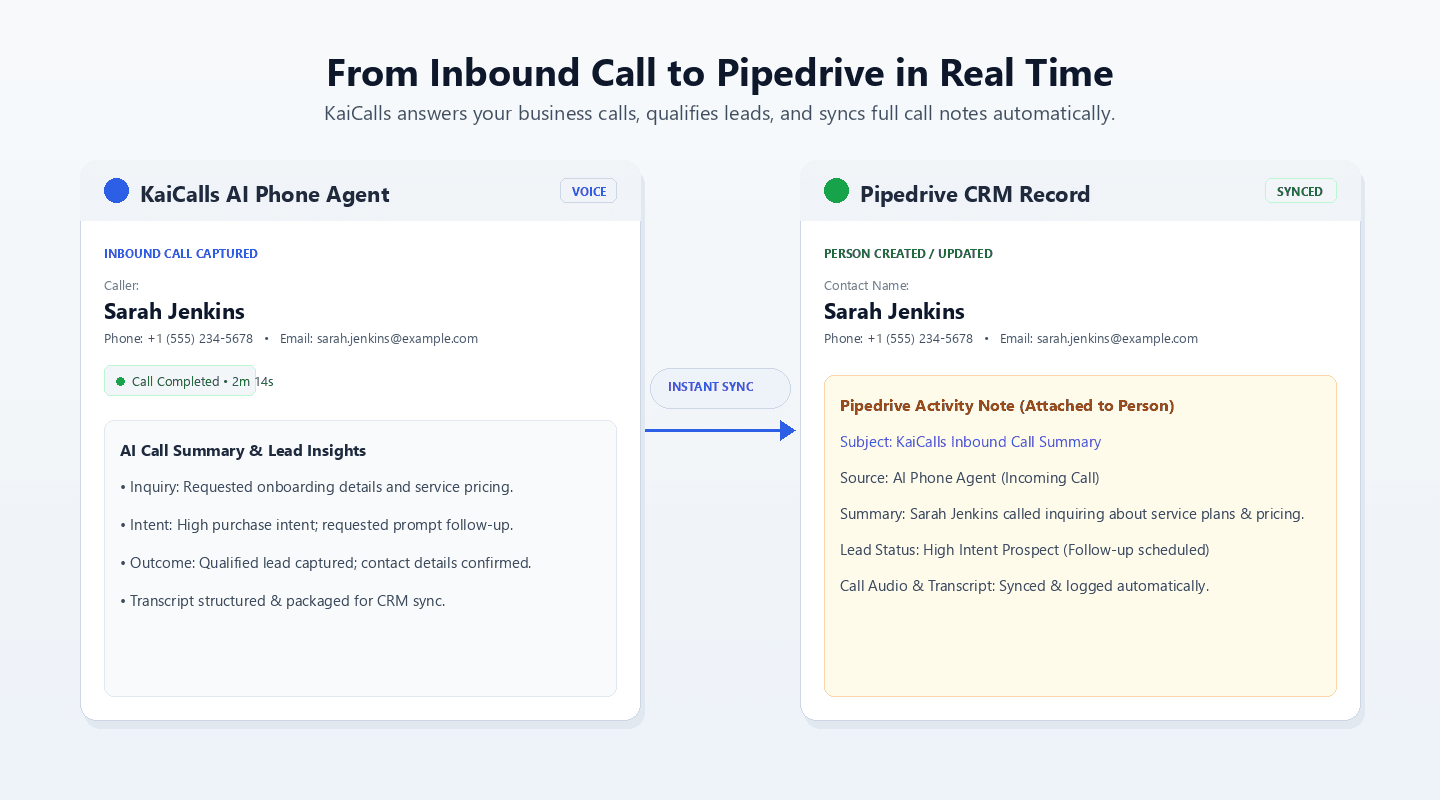
Pipedrive: Real-time Lead Capture & Notes
When an inbound caller speaks to Kai, the caller's contact details, AI summary, and transcript are structured and pushed instantly into Pipedrive as a Person with an attached activity note.
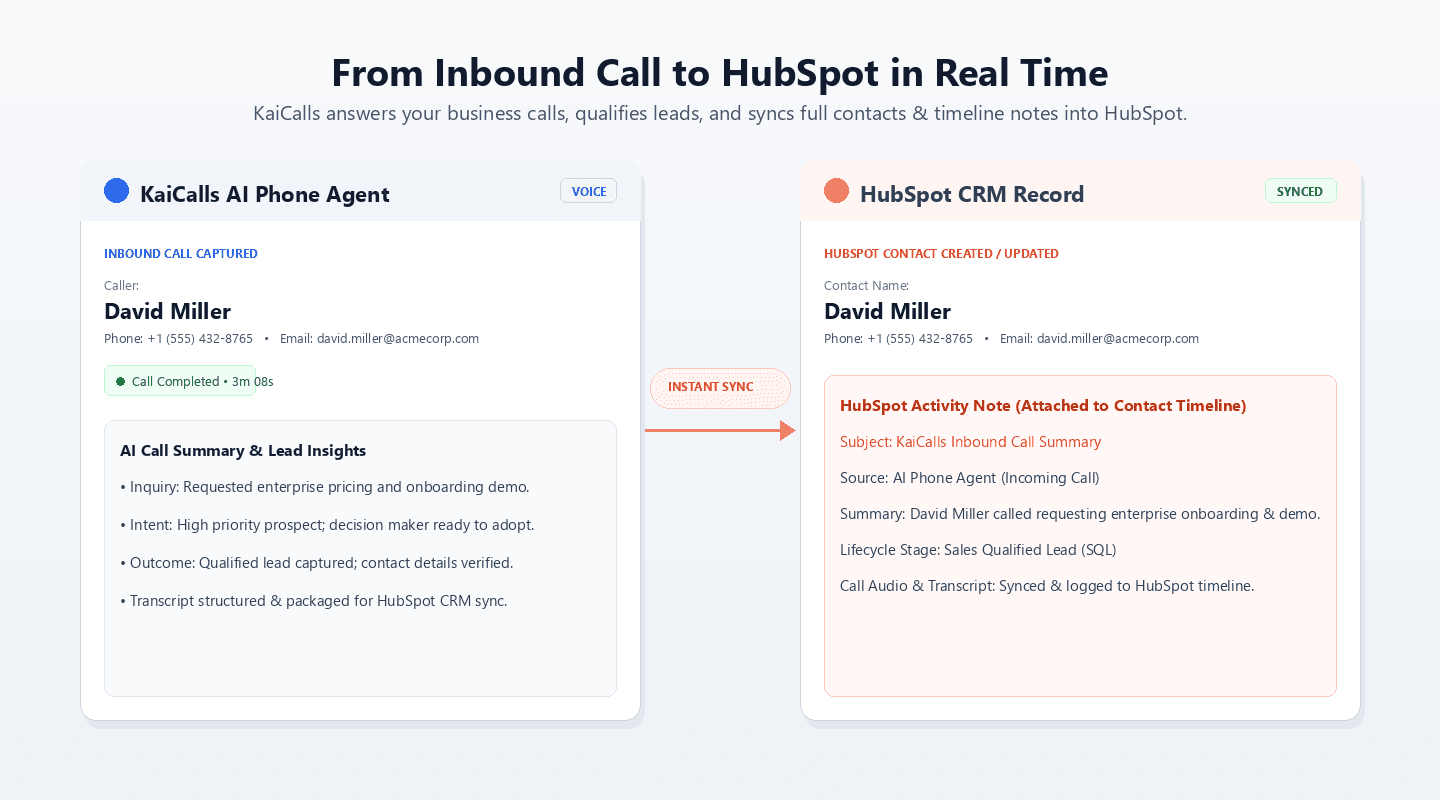
HubSpot: Contact Sync & Timeline Activity
Automatically match or create HubSpot contacts with clean source attribution, call duration badges, and AI-generated call summaries attached to the contact timeline.
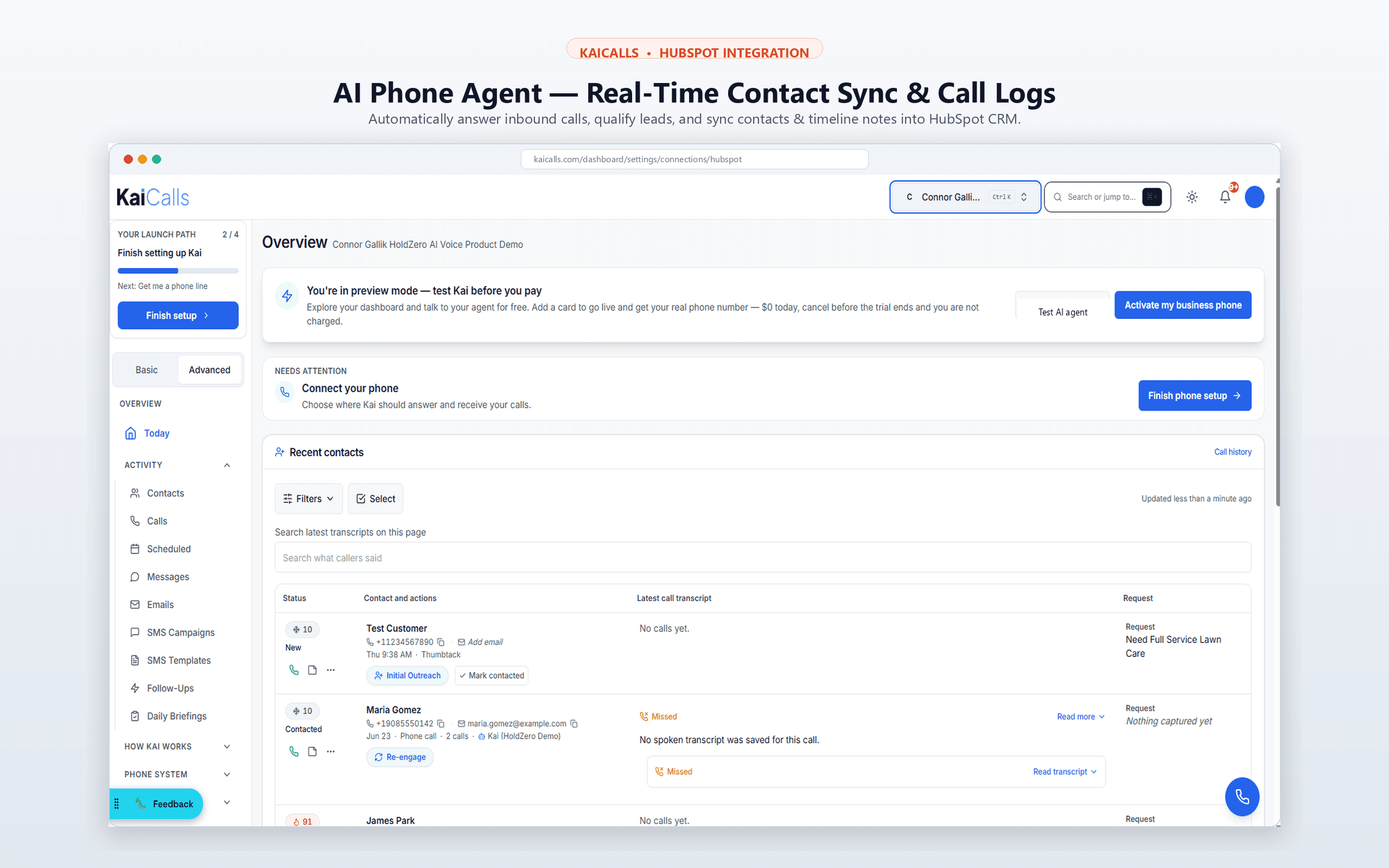
Centralized Activity, Audio & Sync Health
Monitor inbound call recordings, review AI sentiment and transcripts, verify sync status across all connected CRMs, and re-push records on demand directly from the KaiCalls dashboard.
Troubleshooting
- •The provider redirects back with an error. Try connecting again from the same business workspace — authorization is tied to the workspace you start it from.
- •Calendar booking fails. Confirm the calendar connection is active and the right calendar is selected.
- •CRM sync stops. Reconnect the CRM and review your field mappings — a changed field on their side can quietly break the sync.
- •Kai says a service is unavailable. The token usually expired. Reconnect from the Connections page and re-test.
Related
- Integrations Directory — task guides for all 19 supported systems
- CRM — connect and map your lead system of record
- Pipedrive Guide — connect Pipedrive CRM to automatically capture calls & notes
- HubSpot Guide — connect HubSpot CRM to automatically create contacts & timeline activities
- Google Calendar — let Kai check availability and book appointments
- Gmail Guide — set up follow-up email and Gmail drafts
- Tool Library — the agent actions that connected providers power