


Overview
What the Zendesk connection does.
Calls stop getting lost between the phone and your help desk.
Opens a ticket after the call
When an inbound call ends, KaiCalls opens a new ticket in your Zendesk Support account.
Writes a private note
The note has the caller's name and number, a short summary, and a link to the full call in KaiCalls. Only your agents can see it.
Never makes a duplicate
Each ticket carries the KaiCalls call ID. If the same call is sent again, KaiCalls finds the ticket it already made.
Uses your group, priority and tags
Pick a Zendesk group, a default priority and tags. New tickets use them.
Prerequisites
Before you connect.
1. A Zendesk admin
Someone who is an admin in your Zendesk Support account has to approve the connection.
2. Your Zendesk subdomain
It is the part before .zendesk.com. For acme.zendesk.com, it is acme.
Setup
How to connect Zendesk.
It takes about two minutes.
- 1
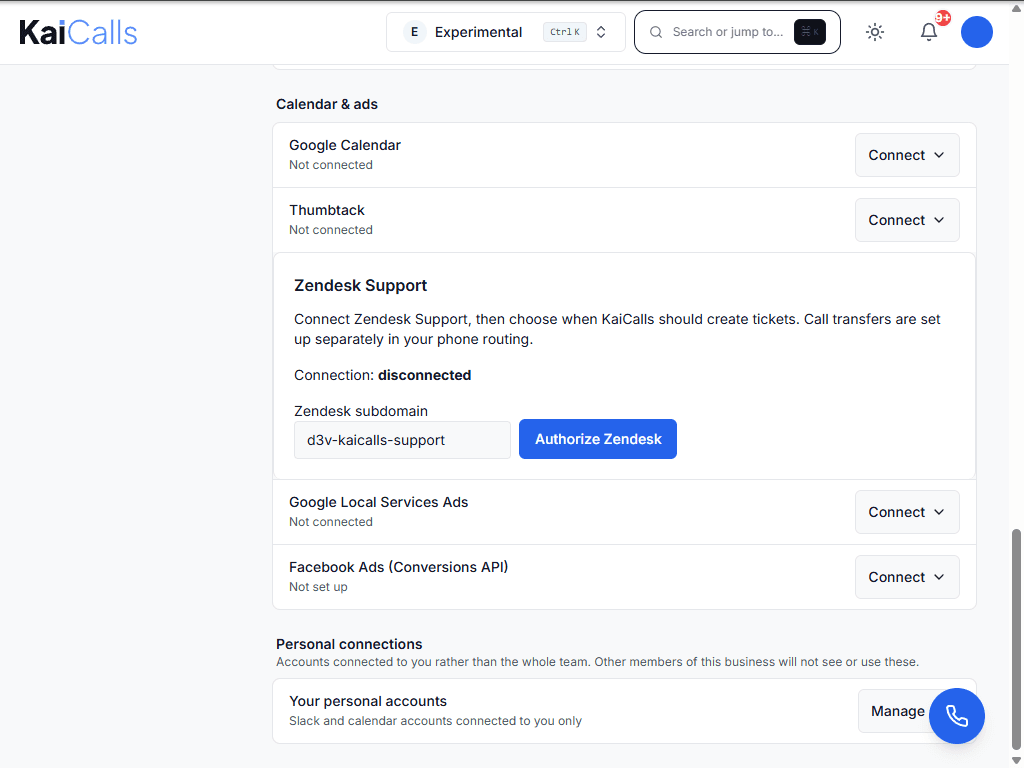
Open Connections in KaiCalls
Go to Settings > Connections and find Zendesk Support. - 2
Type your Zendesk subdomain
Only the part before .zendesk.com. - 3
Choose Authorize Zendesk
Zendesk opens. Your Zendesk admin signs in and clicks Allow. - 4
Check the card says connected
You come back to KaiCalls. The card shows "connected" and your Zendesk address.
Tickets
Turn tickets on.
Tickets stay off after you connect. You choose when they start.
- 1
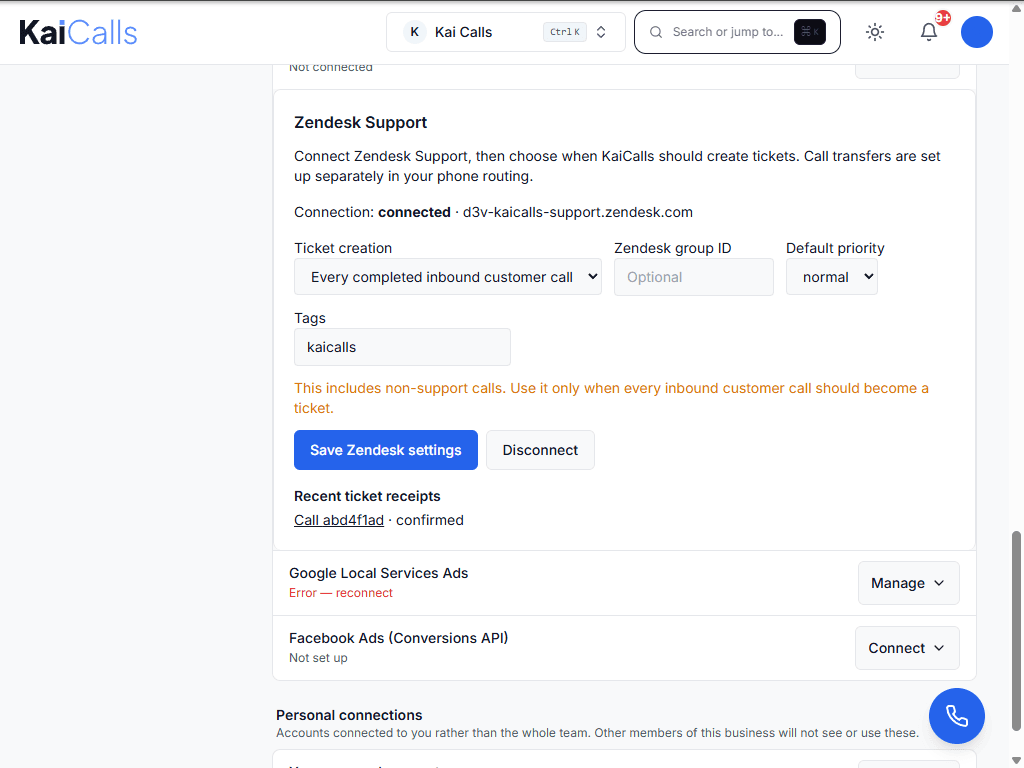
Pick when tickets open
Under Ticket creation, choose "Every completed inbound customer call". - 2
Add a group, priority and tags if you want
The group is optional. Tags start as "kaicalls". - 3
Choose Save Zendesk settings
New calls start opening tickets right away.
"Every completed inbound customer call" means every one, including sales and wrong-number calls. Use it on a support line, or where you want every call in Zendesk.
The ticket
What your team sees in Zendesk.
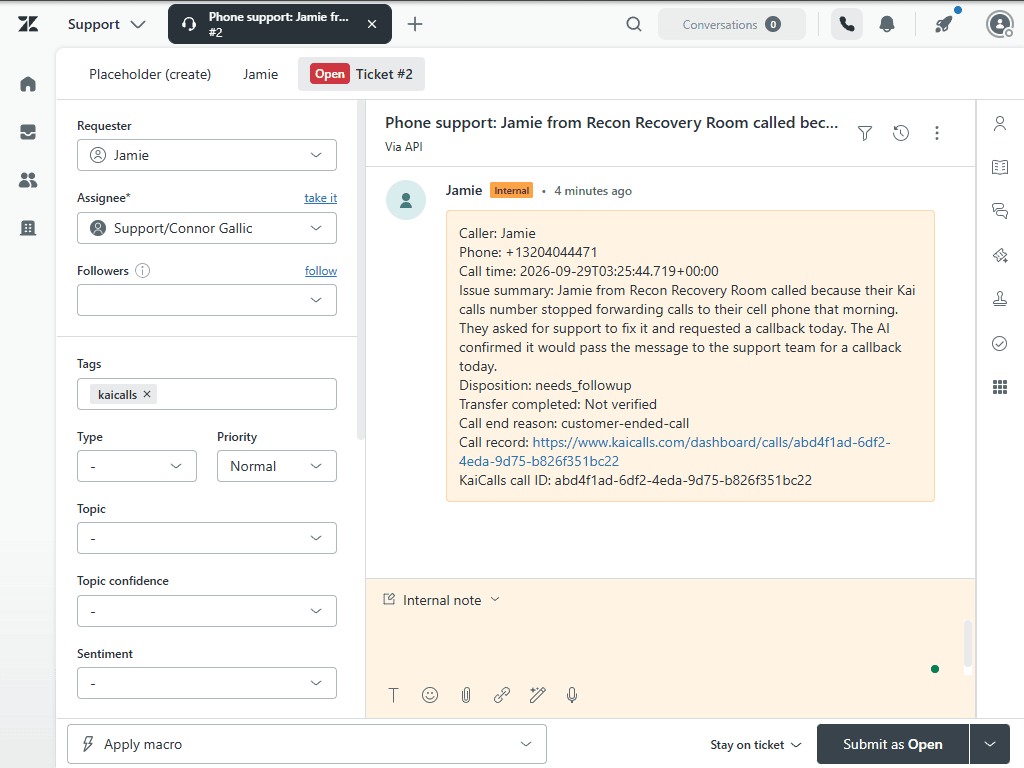
A real ticket from a test call.
Subject
"Phone support:" and the start of the call summary.
Private note
Caller name and phone when Kai got them, call time, summary, outcome, and whether a transfer went through.
Call record link
Opens the call in KaiCalls, with the recording and the full transcript.
Call ID
Ties the ticket to one call, so the same call never opens two tickets.
Knowledge
Teach Kai from your help articles.
Kai can answer callers from the articles your team already wrote in Zendesk.
- 1
Reconnect once if asked
If you connected before Help Center access was added, the card shows Reconnect Zendesk. Your Zendesk admin approves again. Your ticket settings stay the same. - 2
Choose Import help articles
Kai learns every published article. Drafts are skipped. After the first import, KaiCalls checks for changes every day. - 3
Send your answers to Zendesk (optional)
Pick a Help Center section and choose Send as drafts. The answers you taught Kai show up in Zendesk as drafts. Nothing is published until your team publishes it.
Long articles are shortened for Kai, and each one ends with a link to the full article. If you archive or delete an article in Zendesk, Kai stops using it at the next sync.
Verification
How to prove it worked.
Make one test call and check both places.
- Call your KaiCalls number from a phone that is not your own admin phone.
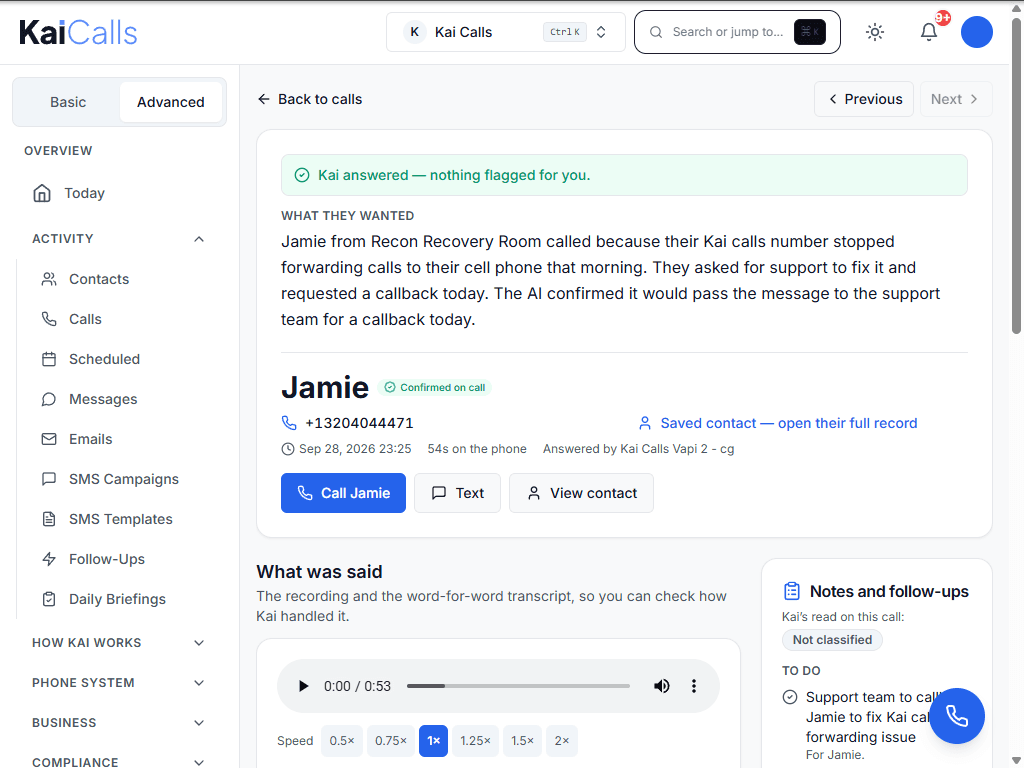
- Say a real support question, like "my phone stopped forwarding calls", and give a name.
- Hang up. Wait about a minute.
- In KaiCalls, open Connections. Under Recent ticket receipts, the call shows "confirmed".
- Open the ticket in Zendesk. Check the note, then open the call record link.
Troubleshooting
Fix common Zendesk issues.
No ticket after a call
Check that Ticket creation is not set to "Off until configured". Only inbound calls that finished open tickets.
Zendesk says you are not allowed
Only a Zendesk admin can approve the connection. Ask your admin to choose Authorize Zendesk.
Wrong Zendesk account
Check the subdomain on the card. Disconnect, type the right subdomain, and authorize again.
Receipt shows an error
KaiCalls retries on its own when Zendesk is busy. If it stays in error, reconnect Zendesk from the card.
Leaving
How to disconnect Zendesk.
Choose Disconnect on the Zendesk Support card. KaiCalls stops opening tickets. Tickets already in Zendesk stay there.