


Overview
A page that moves with the call.
During the call
Kai texts the caller a link early in the call. The page shows the talk as it happens. When Kai puts something on it, the caller can tap it.
After the call
The same link turns into a recap. It shows what was said and what they picked.
For the caller
What callers see.
Kai picks what to show. Here is what can show up.
Choices to tap
A few options. The caller taps one.
Open times
Times you are free. The caller picks one.
A short form
Name, address or email. No need to spell it out loud.
Price tables
Your options and what each one costs.
Notes
Things that are easier to read, like what is included.
A start button
One tap when they are ready for the next step.
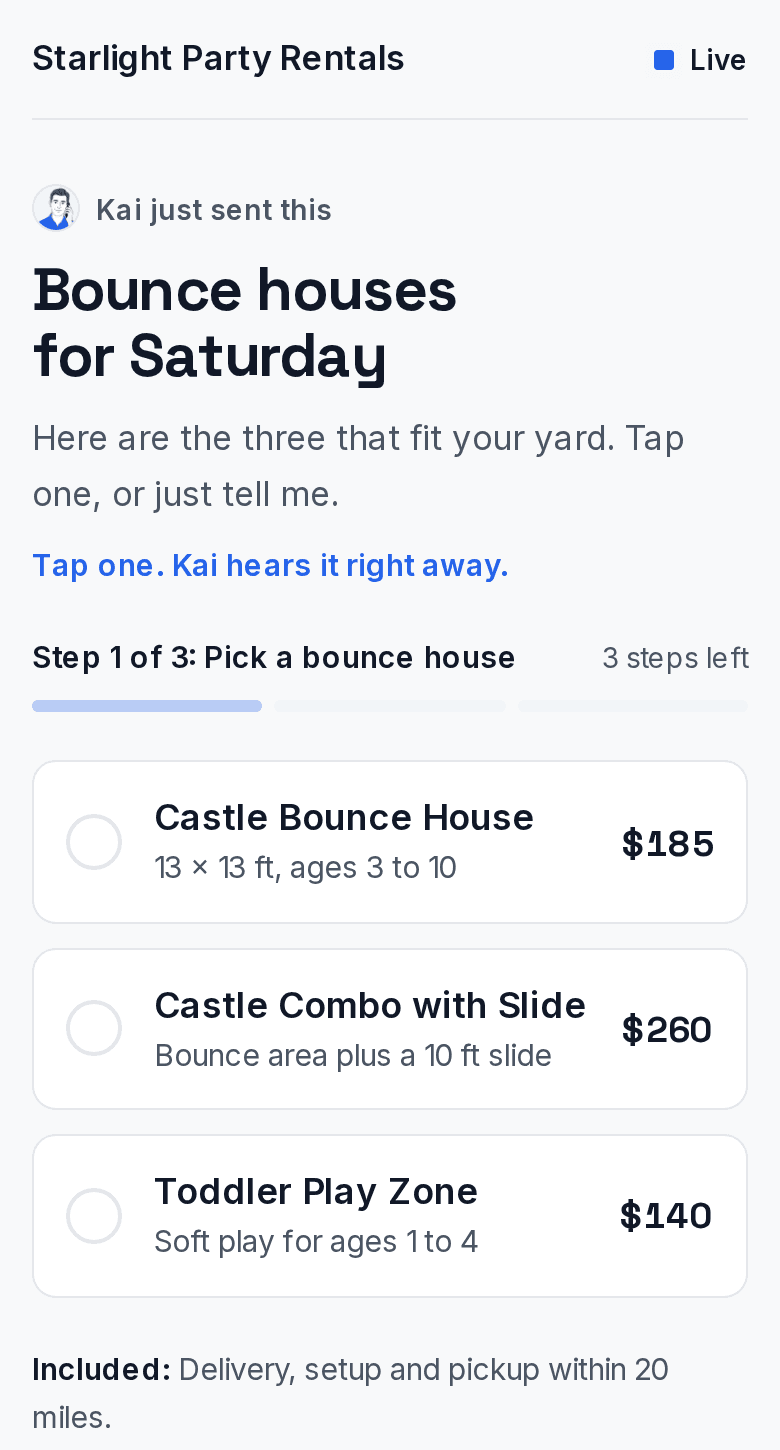
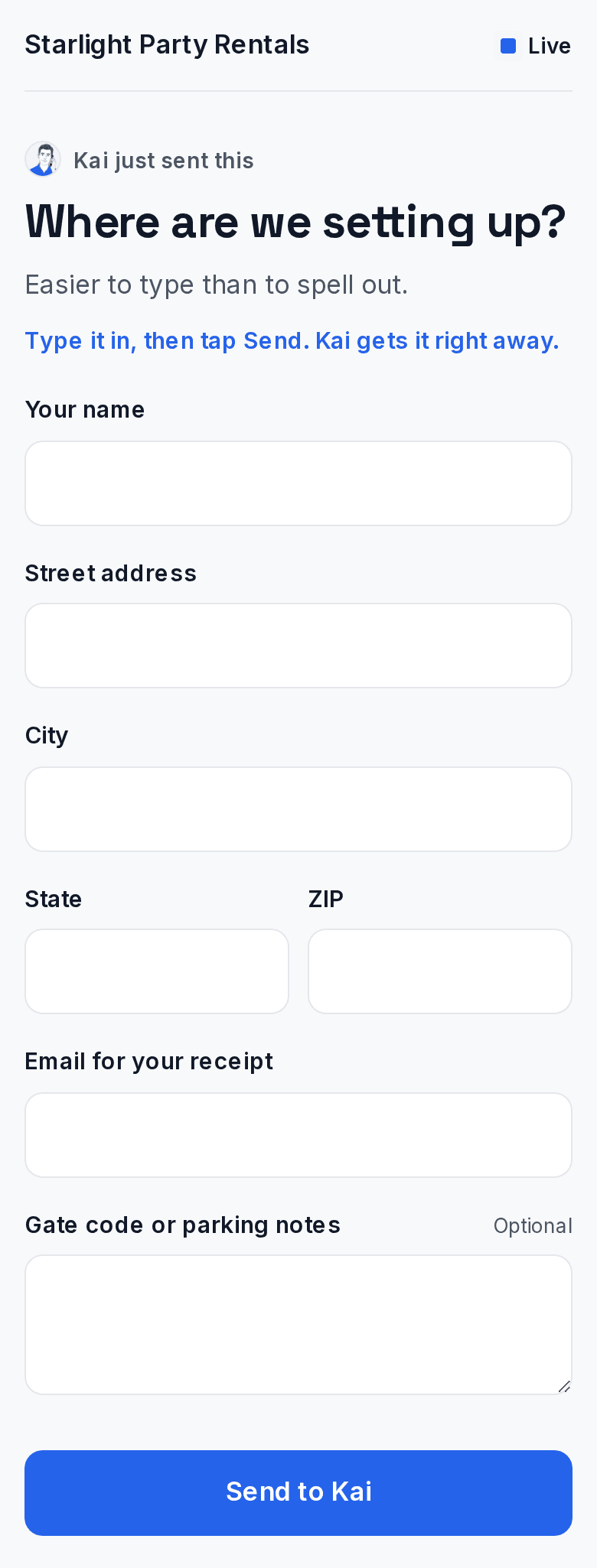
The caller does not have to use the page. If they do not open it, Kai just asks out loud.
For you
What you get.
Lead notes
What they picked, the time they chose and what they typed go in the lead's notes.
Your summary email
Your call summary email has a part called On their call page. It lists the same answers.
Page views
Open the call or the lead. You see when they opened the page and how many times.
Step by step
Turn it on or off.
It takes less than a minute. It changes every line you have.
- 1
Open Settings
Tap Settings in the side menu. - 2
Open Live call page
Tap Live call page. - 3
Flip the switch
Turn the switch on or off. Wait for the note under it. It says On or Off when it is done. - 4
Make a test call
Ask a friend to call your line. When it is on, they get the text during the call. Kai knows your own phone is you, not a caller.
When it is off
Callers do not get the link during the call. They can still get a recap link after the call if your line sends one.
Your look
Want your logo and colour on the page? See branded call pages.
Privacy
Who can open the link.
Kai texts the link only to the phone that is on the call. It is for that one caller and that one call. It stops working after 30 days.
After you save
What you will see.
- The switch says On.
- Your friend's test call gets one text with a link.
- What you tap shows up in the lead notes.
- Your summary email has an On their call page part.
Fix it
If something looks wrong.
The caller got no text
Check that the switch is on. A call from a hidden number cannot get a text.
It says it is on for some lines
Flip the switch again. It is safe to repeat. It sets every line the same.
I do not see Live call page
Use the link below. It opens the switch for you.
Ready? Open Live call page settings.