



Your first task
What do you need the call to find out?
Use an existing KaiCalls agent configured for the kind of outbound call you need. For an agent set up to check order status, give the business number and what you need to find out, then confirm the details before the call.
- 1
Connect, then return to your request
Sign in and approve access to the intended KaiCalls account. Return to the same conversation. If your assistant has lost the request, repeat the number and what you need to find out. - 2
Confirm the agent and the call
Ask your assistant to use the agent configured for this task. Check the destination, the question, and any limits on what Kai may say or agree to. KaiCalls checks whether the call can be placed. India and Pakistan are not supported. - 3
Keep the call reference
An accepted request is not an answer. Keep the call reference in the conversation so you can ask for progress without placing the call again. - 4
Ask for the result
Ask “What happened on that call?” Review the summary or transcript when available. If the call did not produce an answer, decide what to do next; another call needs your instruction.
Set it up
Connect the assistant to the business you want to manage.
You need a KaiCalls login with access to that business. Your assistant must support a remote MCP connector, which is the secure link that lets it use approved KaiCalls actions. Some assistants limit this feature by plan or workspace role.
10-second picker
Which assistant is right for your setup?
Easiest on phone & web
- Official published app in the OpenAI Directory
- Works on ChatGPT Free, Plus, and Team
- Sign in once with your KaiCalls account
Best for transcripts & analysis
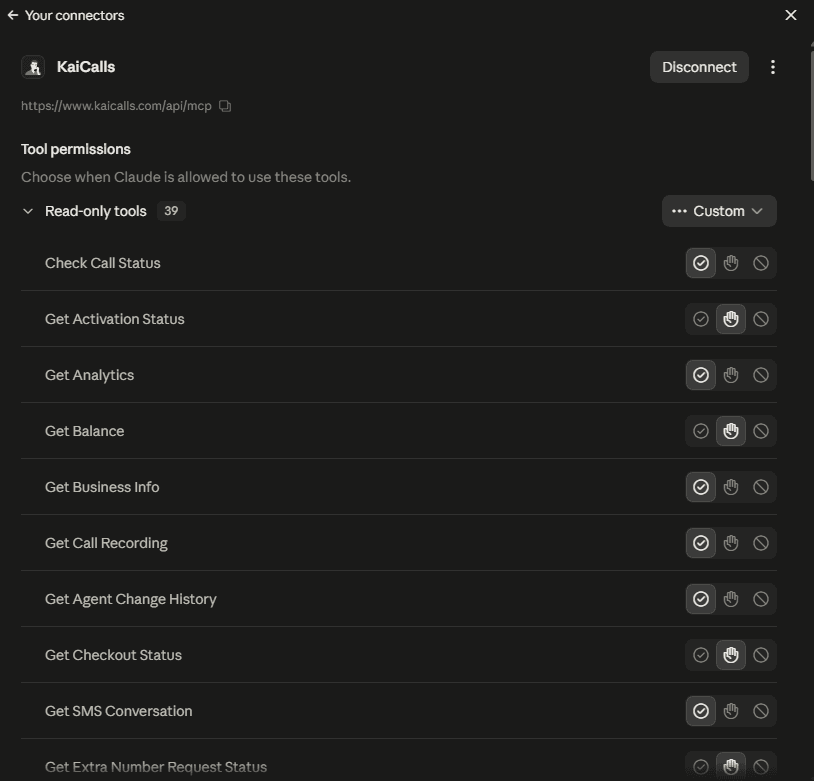
- Granular toggle for each of 39 actions
- Deep reasoning on transcripts & voicemails
- Direct link into Claude Connector Settings
Mac & mobile AI agent
- Personal AI agent by Facebook / Meta
- Works on Mac, iOS, Android, and WhatsApp
- Built-in Sentinel safety confirmation
Builders & engineering teams
- 1-click deep link prefills server config
- Automate accounts across customer rosters
- Git-backed prompt versions & CI eval testing
Remote MCP Connector URL
https://www.kaicalls.com/api/mcp
Paste into Claude, Meta Muse, Cursor, Grok, Gemini, Copilot, or any MCP client.
- 1
Open your assistant’s connector settings
Use its app directory or add the remote connector URL:https://www.kaicalls.com/api/mcp. - 2
Sign in to KaiCalls
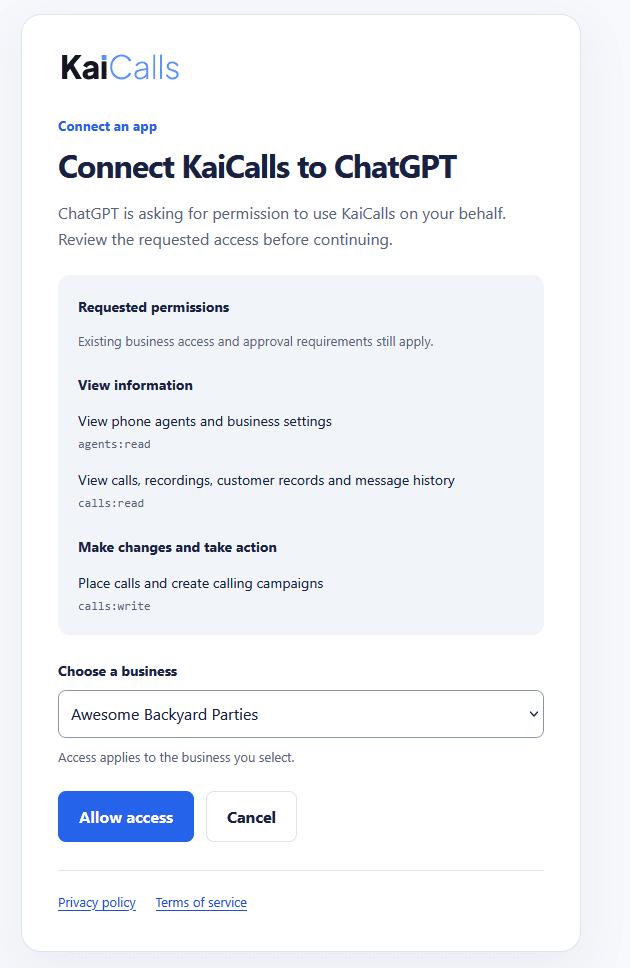
Complete the KaiCalls authorization screen using the account that can access the intended business. - 3
Choose one business
If your login belongs to more than one business, select the one this connection may reach. - 4
Review and approve access
Allow only the reading or account actions you want the assistant to perform. - 5
Run a real read
Ask “Did I miss anything overnight?” and confirm the response reflects that business.
Watch the video tutorial
Pick your client
The installation effort depends on the assistant.
Filter by your preferred client to get direct shortcut links, commands, or setup steps.
ChatGPT
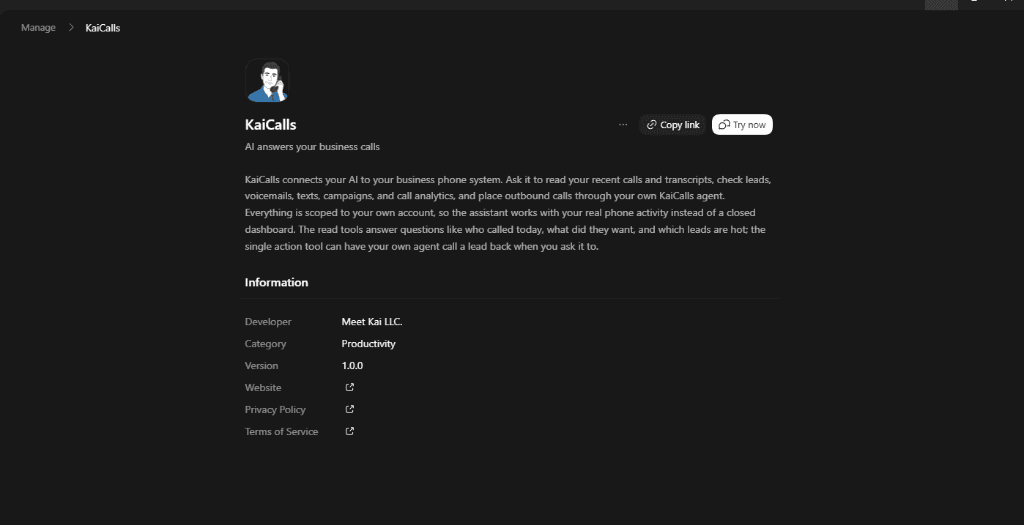
One clickOpen the KaiCalls app and press Connect, then sign in. Nothing to paste.
Cursor
One clickOpens Cursor with the connector already filled in. Approve it and sign in.
Claude Code
One commandRun the command, then authenticate with /mcp inside Claude Code.
claude mcp add --transport http kaicalls https://www.kaicalls.com/api/mcpClaude
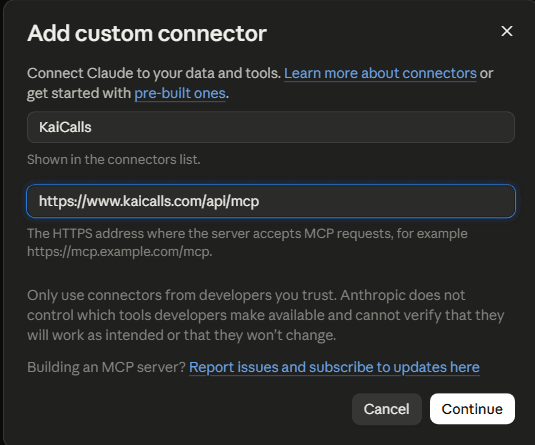
Paste a URLOpens Claude’s connector settings. Press “Add custom connector”, paste the KaiCalls URL, and sign in.
Gemini
Paste a URLIn Settings & help → Connected Apps, paste the KaiCalls URL under “Add a custom app link”, then sign in.
Grok
Paste a URLIn grok.com/connectors, add a Custom connector and paste the KaiCalls URL.
Meta Muse (Facebook)
Paste a URLIn Muse for Mac or the mobile app → Settings → Connectors / MCP, choose “Add Server”, paste the KaiCalls URL, and sign in.
Codex
Edit a config fileAdd KaiCalls to ~/.codex/config.toml, then let it sign in on first use.
Manus
Edit a config fileIn Settings → Integrations → Custom MCP Servers, add the KaiCalls URL with an API key as the bearer token.
VS Code & GitHub Copilot
Edit a config fileAdd KaiCalls to .vscode/mcp.json, then approve the sign-in on first use.
Confirm it works
A saved connection shows setup. A correct answer shows access is working.
- The assistant completes KaiCalls sign-in without an authorization error.
- The response to “Did I miss anything overnight?” contains data from the selected business, or clearly says there was no matching activity.
- An approved change returns its own success or approval result. Reading account data does not prove the assistant can make changes.
- A placed test call proves the assistant can start that call. It does not prove an inbound number or call route works from start to finish.
What you can ask
Ask naturally. KaiCalls uses the actions you approved.
Click Copy on any prompt to paste it straight into your assistant conversation.
Catch up on what you missed
The morning question, without opening the dashboard or listening to anything.
- “Did I miss anything overnight?”Reads back last night’s calls, voicemails, and texts in one answer.
- “Summarize the calls Kai handled this week and how many turned into leads.”Totals for the week, with the calls that produced a lead called out.
Fix how Kai talks
When a caller got the wrong answer and you want it never to happen again.
- “Kai keeps flubbing the pricing question. Pull a recent call and fix it.”Finds the call, reads the transcript, and updates the agent so it answers right.
- “We’re closed Sundays now.”Updates your hours so Kai stops offering Sunday appointments.
- “Add our $149 drain-cleaning special so Kai quotes it correctly.”Adds the offer to what Kai knows, so it can quote the price on a call.
Chase leads and follow up
Have Kai place the calls and send the texts you would otherwise do yourself.
- “Call the three leads from yesterday who never booked.”Kai places the calls and reports back how each one went.
- “Text the customer from the 2pm call our address and a booking link.”Sends the text from your business number.
Test before you trust it
Run your saved voice tests against your own line whenever you ask.
- “Test that the after-hours flow still works before I go to bed.”Runs your saved call scenarios and tells you which ones passed.
- “I just changed the greeting. Run the tests again and tell me if I broke anything.”Re-runs the scenarios against the current setup and reports failures.
See what changed, and undo it
Every change is recorded, so "put it back how it was" is a real instruction.
- “What changed on my agent last week, and who changed it?”Lists the changes with timestamps and where each one came from.
- “Undo whatever changed the greeting last Tuesday.”Rolls that change back and confirms what the greeting says now.
Check usage and billing
Answer "am I about to get a surprise?" without a support ticket.
- “Am I going to blow past my plan this month?”Reports the usage on record for this billing period, plus any plan change already recommended for the account.
- “Why did my bill change?”Walks through the plan and add-on changes on your account.
Check nothing is quietly broken
Catch a dead calendar or CRM connection before a customer finds it for you.
- “Is anything broken today?”Surfaces failed bookings, sync errors, and tool timeouts from your calls.
- “Is my number actually answering right now?”Confirms which numbers are live and attached to which agent.
You stay in control
The assistant only gets the business and actions you approve.
Read account activity
Take an action
Sensitive changes
One business at a time
Failure and recovery