


Use an app code to sign in
Add a code from an app on your phone as a second sign-in step. This is optional for owners. Once set up, you need the app code to sign in.
Set up your code app
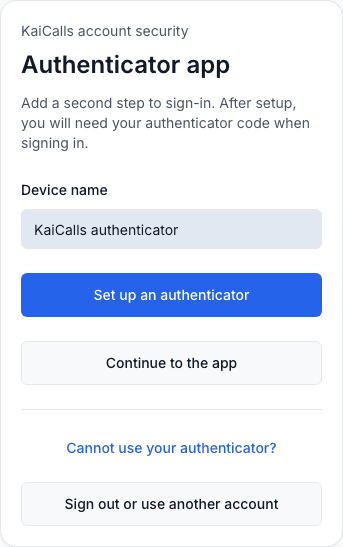
- Open Account security in Settings.
- Choose a device name, such as Work phone. Use a different name for each device.
- Choose Set up an authenticator.
- Scan the QR code with your code app. Or choose Use a setup key instead. Keep that key private.
- Enter the current 6-digit code from your app. Choose Verify code.
- Wait for Authenticator verified, then choose Continue to the app.
If a code fails, enter the new code shown in your app and try again. This screen does not send text codes.
Add a backup device
First verify your current app code. Choose Add another authenticator. Give the backup a new device name, then scan its code and verify it too.
If that name is in use, enter a new name and try again. To remove a device, verify your sign-in, then choose Remove for that device. Some staff accounts must keep a verified device.
Lost your device?
Try another code app already linked to your account. If you lost every device, open support options for help with account recovery.
A password reset or email code does not replace this step. You can also sign out and use another account.