


CARRIER-GRADE TELEPHONY NETWORK
TELECOM SALES & DEMO: 1 (417) 386-2898
Help Center

Phone system

Your number. Your phones ring. Kai catches the miss.

Your phone system is included in every plan — plus the regulatory fees every phone line carries, shown on their own line. Keep the number your customers have and the phones your team answers. Cells and desk phones ring first; if nobody picks up in the time you set, Kai answers — and every call, answered or missed, gets a recording, a transcript, and a summary.

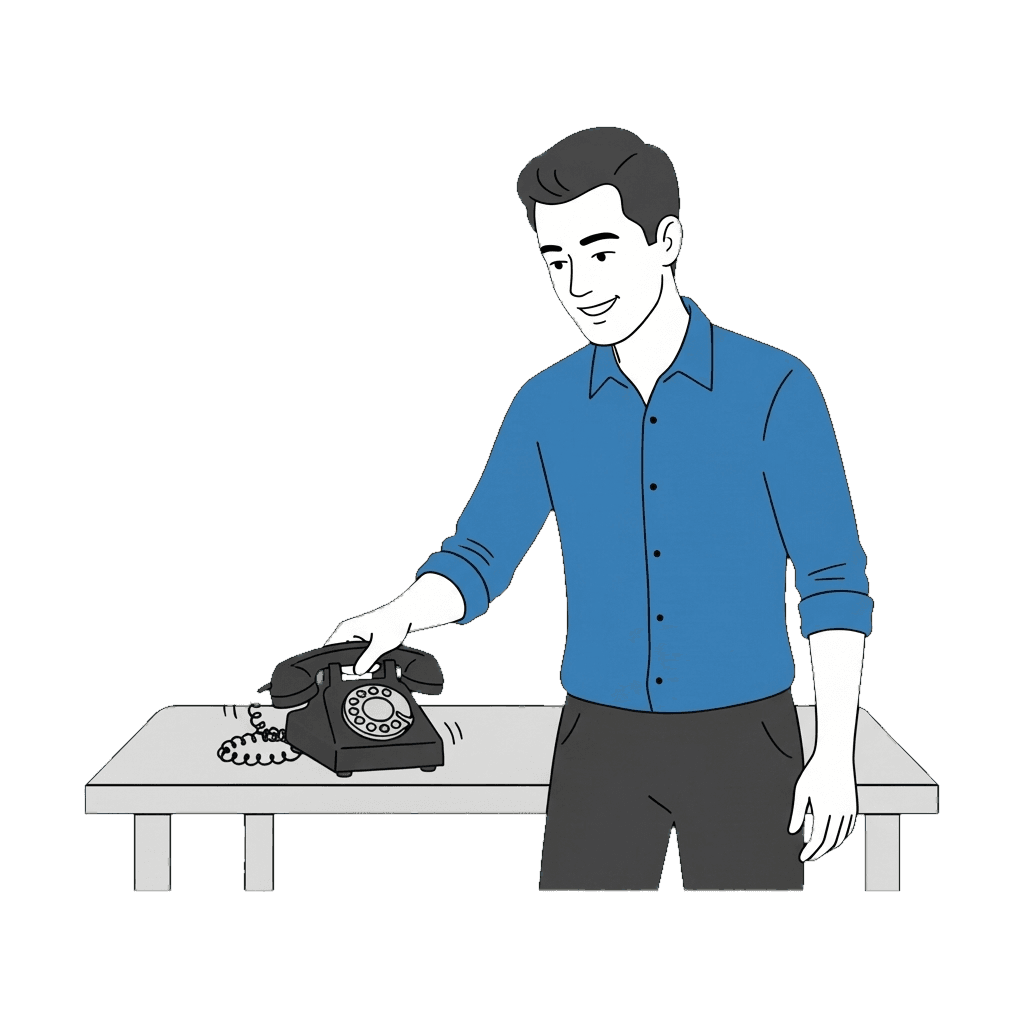
Kai holding a ringing phone, ready to pick up when nobody else can

First

Your phones ring

Cells and desk phones ring together. Press 1 on a cell to take the call.

700

Kai’s extension

Dial 700 from any office phone, or call your own number from a registered cell.

Every call

Recorded

Recording, transcript, and summary — including calls a person answered. The owner is texted a recap.

The one story

The phone rang, nobody picked up, so Kai did.

Nothing changes for your customers and nothing changes for your team. A call to your number rings your phones the way it does today. Kai is added behind them for the calls that would have gone to voicemail.

1. A customer calls your number

The same number they have always used, whether you forward it to your phone system today or move it over for good.

2. Your phones ring first

Every cell and desk phone on the team rings at the same time, for the number of seconds you set. On a cell, press 1 to take the call so a personal voicemail never grabs it.

3. Nobody picks up, so Kai does

Kai answers as your business, gets what the caller needs, and handles the next step you have set up — a booking, a message, a transfer.

4. You get the whole story

A text with what the caller wanted and a link to the recording. Calls your team answered are recorded and summarized too.

Setting it up

Hear Kai, choose your phones, point your line at it.

Setup happens in one sitting during signup. If you already have an account, open Phone and follow the same steps from the phone system card.

  1. 1

    Hear Kai answer as your business

    Right after signup you get a number to call. Kai greets you as your business. This is the same greeting your callers will hear when nobody picks up.
  2. 2

    Answer “Which phones?”

    Choose Just my cell or We have an office line / desk phones. Either answer sets up your phone system with your cell in the ring group and Kai as extension 700.
  3. 3

    Point your line at it

    Dial the short forwarding code for your carrier from the phone that owns the number. An office line forwards to your phone system, so it rings desk phones and cells before Kai. A solo cell forwards straight to Kai. See Connect your business line.
  4. 4

    Let your cell ring

    Kai calls your line to check the connection. Your cell rings — let it go and don’t press 1. A few seconds later Kai answers, and you get the recap text. That text is what every missed call looks like from now on.
The ring flow — who rings, for how long, and when Kai steps in — can be set on one screen in the dashboard, by describing it in words, or by calling Kai and telling him.

Which phones ring

Cells now. Desk phones arrive pre-configured.

Your cell

Your cell is in the ring group from the first day. It rings with a press-1 prompt, so a call you don’t take falls through to Kai instead of your personal voicemail.

Teammates’ cells

Add a teammate’s cell and it rings in the group too. See Teammates’ cells below.

Desk phones

Bring your own SIP phone and it registers to your phone system, or on the Connected screen (or the phone system card on Phone) enter how many desk phones you need and where to ship them. Confirm the office address first — it is what 911 sees from these phones. They arrive set up: plug them into your router and dial 700 to hear Kai. If callers can't hear you, your router's SIP ALG is on — one toggle, we will walk you through it. Until then your existing phones keep working as they do today. Your plan includes desk-phone connections (Kai Backup: 0 desk phone connections included; more are $29/mo per handset) — see What it costs.

Your existing office phones

While your number is forwarded, your current office phones keep ringing the way they do now. When the number is moved over for good, the pre-configured desk phones take over.

Call 700

Kai is extension 700 on your phone system.

Kai is a line on the phone system like everyone else. Calling him from inside the business opens your secretary, not the customer greeting.

From any office phone

Dial 700. Kai picks up as your secretary: ask what you missed, hear a voicemail, change your hours, add a teammate’s phone.

From your cell

Call your own business number from a registered cell. Kai recognizes the number and opens the same secretary. See What you can do by calling Kai.

Moving your number

Forward it today. Move it for good when you are ready.

Forward today

Forwarding takes about a minute with a carrier code and covers you immediately: your line rings your phones first and Kai answers the miss. Nothing about your current carrier plan changes.

Move it for good

Tap Move my number for good on the Connected screen or under Phone System > Port Numbers (office lines only — a personal cell is never moved). Usually 1–3 weeks. We will need your carrier account number and transfer PIN exactly as they appear on the bill, nothing moves until you approve the date, and we text you the switch morning and test your line with you before lunch. Full steps in How to port numbers.
Keep your old service on until we text you it is done — cancelling early can lose the number. On the switch morning your old carrier drops every feature on the line, including the forwarding that covers you today, so we route your number here before it flips. Texts to a moved number do not reach the dashboard yet.

Teammates’ cells

Add a teammate’s cell and it rings with yours.

  1. 1

    Add the number

    On the Connected screen or the phone system card on Phone, use Add a teammate’s cell. Or call Kai and say “add Maria’s cell to the ring group.”
  2. 2

    It rings in the group

    Their cell rings alongside yours and the desk phones, with the same press-1 prompt. Whoever presses 1 first takes the call.
  3. 3

    Kai recognizes them when they call in

    A registered teammate calling the business line is recognized by number. What they can ask Kai depends on the role you gave them — see Team members.

What it costs

Included in your plan, with the fees every phone line carries on their own line.

There is no phone-system tier and no per-person fee. Your plan counts a number of phone lines and desk-phone connections in its price; teammate cells join the ring group free. Anything beyond that is itemised beneath the plan price.

Kai Backup — $10/mo

1 phone line and 0 desk-phone connections included, unlimited teammate cells. Plus about $4 in regulatory fees and taxes, on their own line.

Kai Answering — $79/mo

1 phone line and 0 desk-phone connections included, unlimited teammate cells. Plus about $4 in regulatory fees and taxes, on their own line.

Kai Office — $349/mo

1 phone line and 3 desk-phone connections included, unlimited teammate cells. Plus about $13 in regulatory fees and taxes, on their own line.

Adding more

On any plan: extra lines $15/mo, desk-phone connections $29/mo. Adding a cell phone to your ring group is free. Each desk-phone connection beyond your plan costs $29/mo, plus applicable regulatory fees. Use a compatible SIP phone; hardware is separate.

Why there is a fees line

Regulatory fees and telecom taxes depend on your location. We pass them through at cost on a separate invoice line and remit them to the carrier. They apply to the phone-system part of your plan, not the answered-call service. There are no per-minute overage charges.
The fee line reads "about" because the regulatory fees and telecom taxes are set by your address. They apply to the phone-system part of your plan only — never to the answered-call service, and never per minute.

What gets recorded

Every call on your number — not just the ones Kai took.

  • Calls Kai answered: recording, transcript, summary, and a lead record.
  • Calls your team answered on a cell or desk phone: recording, transcript, and summary, in the same Calls list.
  • After a missed call the owner is texted a recap with what the caller wanted and a link to the recording.
  • The first time a teammate answers a call, the owner gets a one-time text with that recording so you can see it working.
  • Voicemails left with Kai land in Dashboard > Voicemail with a transcript and a text to the owner.
Recording disclosure is your responsibility in the states that require it. Kai’s greeting can include the disclosure; check Compliance for how to turn it on.

The dashboard

Everything is on Phone, if you want a screen.

Most owners run the phone system by calling Kai. The dashboard is there when you want to see it laid out.

Your phone system card

Phone shows status, Kai’s extension, desk phones on the way, and where your number move stands.

Ring flow

Phone System > Call Routing sets who rings, for how many seconds, and when Kai steps in — or describe it in words and Kai sets it.

Activity and recordings

Every call, text, and voicemail is in the Activity Feed on Phone and under Dashboard > Calls. Click any call for the recording and transcript.

Browser phone and checking your setup

Make outbound calls from the browser without your cell. To confirm a routing change, Check where a call would go on Phone. Simulation only — uses your saved settings. No call is placed, no phone rings and nothing reaches the phone network. To actually hear Kai’s current greeting, call your number from your own phone — that is the only check that proves the phone network agrees with your settings.

Honest limits

What is not there yet.

No mobile app yet. Your cell rings in the team group, and you call your own number to reach Kai. That is the mobile experience for now. Answer on your cell and the call is yours — it can't be transferred to the office or put on hold yet.
Texting from your office number is not available yet. Texts to you and to callers go out from your Kai number. Texting from your own office number lands once the number has been moved over for good — we will tell you when it is ready rather than promise a date.
No keypad-menu builder for the phone system. The ring flow is set on one screen, in words, or by calling Kai. If your callers need a press-1-for-sales menu, talk to us and we will set it up with you.
Desk phones need your office internet. If it goes down, desk phones will not ring; the call still reaches cells over the cellular network and then Kai. Your number keeps working either way.

Troubleshooting

When a ring does not go the way you expected.

My cell rang but the call went to my personal voicemail

Press 1 when you answer. Without it, the phone system treats the call as unanswered by you and keeps ringing the others, then Kai. Personal voicemail should never capture the call — if it did, tell Kai or contact support.

Kai answered before anyone could pick up

The ring time is too short for your team. Open Phone System > Call Routing and add seconds, or call Kai and say “ring for 30 seconds before you answer.”

A teammate’s cell does not ring

Check that their number was added on the Connected screen or by asking Kai, and that it is not the same number your office line is forwarded from — that number is never in the ring group, to avoid a loop.

I answered a call and there is no recording

Recording of human-answered calls needs the call to reach your phone system, not just your carrier. While you are forwarding from a cell directly to Kai, only Kai’s calls are recorded. Forward the office line to your phone system, or move the number for good.