



Overview
What the Rentopian connection does.
Kai answers rental calls. KaiCalls then sends each caller to Rentopian as a quote.
Makes a quote
Saves the customer
Adds the items
You stay in charge
Prerequisites
Before you connect.
1. Your Open API key
2. Admin in KaiCalls
3. A website key (optional)
Setup
How to connect Rentopian.
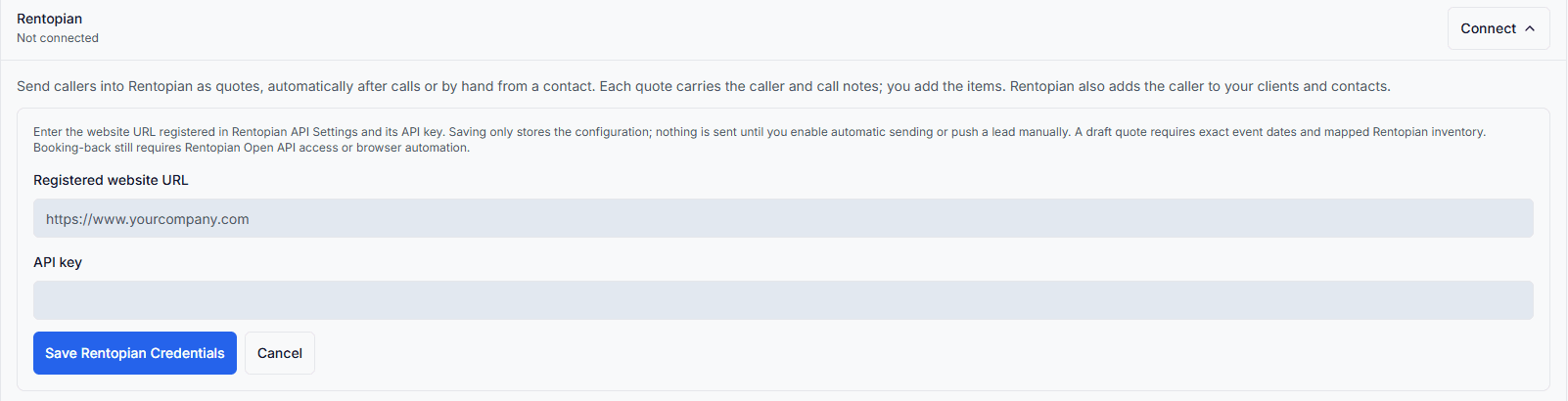
Save your key in four steps.
- 1
Open Connections in KaiCalls
Go to Settings > Connections > Rentopian. Tap Connect Rentopian. - 2
Paste your Open API key
Paste the key from Rentopian into the Open API key box. - 3
Add the website key if you want
This step is optional. Open Website key. Type your website and paste the website key. Kai uses it to check live stock. - 4
Tap Connect Rentopian
KaiCalls checks the key with Rentopian first. If Rentopian takes it, the card says Key saved.
Orders
Add the Open API key.
With this key, Kai can read your orders. He does not change them.
- 1
Get the key from Rentopian
Ask Rentopian support for your Open API key. It is a second key. The website key will not work here. - 2
Open the Rentopian card
Go to Settings > Connections > Rentopian. Find the box called Open API key. - 3
Paste the key
Tap Add key. Paste the key. Tap Save and check. - 4
Check that Rentopian took it
A note says if Rentopian took the key. If not, check that you copied the Open API key.
On the call
Kai knows your past customers.
When a past customer calls, Kai can tell. He matches the number they call from.
He matches the phone
He knows their orders
He can answer simple asks
He never says prices here
Your own line
Ask Kai about your bookings.
Call your own Kai number from your owner phone. Ask about your orders.
- 1
Call your Kai number
Call from a phone on your owner list. Kai picks up as your secretary. - 2
Ask about a day
Say "What goes out this weekend?" or "What do we have tomorrow?" Kai reads each order, its times, its items and its total. - 3
Ask how many go out
Say "How many patio heaters go out this week?" Kai adds them up by day and names the orders. - 4
Ask about one order
Say "Pull up order 12899." Kai reads that order. - 5
Ask about one customer
Say "What did Maria order?" Kai finds Maria in your contacts and matches her phone in Rentopian. If she is not in your contacts, say her first and last name. Kai looks her up in Rentopian.
On the call
Kai checks what is open.
Kai can look at your Rentopian items while the caller is on the line.
Your items copy over
Kai checks the date
He never holds items
Prices stay off at first
- 1
Check your items copied
On the Rentopian card, look under Your items. It says how many items copied. Tap Sync now to copy them again. - 2
Turn on the item check
Open Kai's settings. In Tools & Capabilities, turn on Check rental availability. - 3
Pick if Kai says prices
Back on the Rentopian card, turn Let Kai say list prices on or off. It starts off.
Auto send
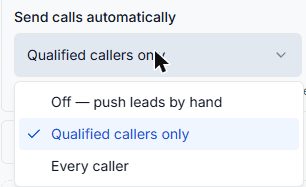
Pick when calls go to Rentopian.
After you save, the card shows a box called Send calls automatically.
Off — push leads by hand
Qualified callers only
Every caller
By hand
How to send one contact.
You can push any contact yourself, even with auto send off.
- 1
Open the contact
Tap Contacts and open the person. - 2
Find Send to your CRM
Scroll to the box called Send to your CRM. Tap Push to CRM. - 3
Tap Push to Rentopian
A note pops up. It tells you it worked, or what went wrong.
After you send
What you will see in Rentopian.
Look under Quotes first.
A new quote
The date and time
The call notes
The client and contact
Results
See bookings from Kai calls.
Upload a Rentopian report. KaiCalls counts the orders from people who talked to Kai first.
- 1
Export your orders from Rentopian
In Rentopian, open Reports, then Financial Order Details. Pick the dates you want. Add the client phone column if you can. Save it as a CSV or Excel file. - 2
Export your contacts too
Open CRM, then Contacts, and tap Export. Order files often have no phone numbers. The contacts file has them, so we can match by phone. - 3
Open the Rentopian card in KaiCalls
Go to Settings > Connections > Rentopian. Find the box called Bookings from Kai calls. - 4
Upload the file
Pick the order file. Add the contacts file if you have it. Then tap Check orders. - 5
Read the result
You see how many orders came from people Kai talked to first, what they were worth, and how many were new customers.
Each morning
Get a daily report email.
Kai can email you a short note after a busy day, and a weekly one every Monday.
What it says
Who gets it and when
- 1
Open the Rentopian card
- 2
Turn on Daily report email
It starts off. The card shows who gets it. - 3
Check your email alerts
Email alerts must be on in Notifications. If they are off, no report is sent.
Verification
How to prove it worked.
Push one contact and check Rentopian.
- Call your KaiCalls number from a phone that is not your owner phone. Give a name and say what you want to rent.
- When the call ends, open Contacts in KaiCalls and find the test contact.
- Tap Push to CRM, then Push to Rentopian. Wait for the note that says it worked.
- In Rentopian, open Quotes. Find the new quote with the test name and the call notes.
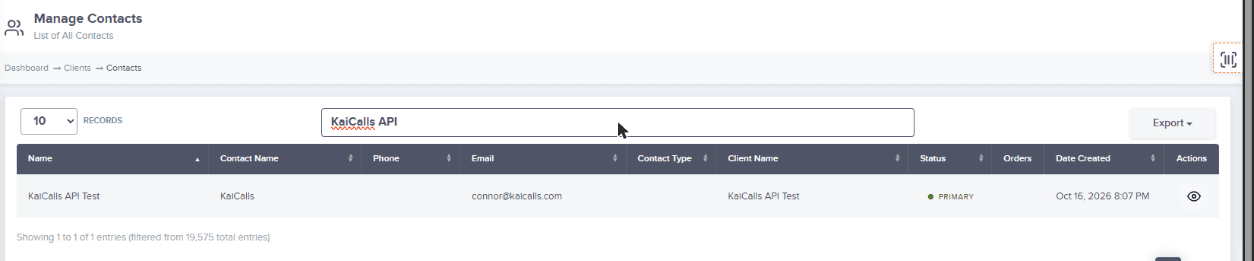
- Open CRM > Contacts in Rentopian. Check that the test name is there.
- Delete the test quote when you are done. Open it and tap Delete Quote. The trash icon in the Quotes list may not remove it.
Troubleshooting
Fix common Rentopian issues.
Authorization failed
No quote in Rentopian
Rentopian rejected that request
No valid contact information
Kai says he cannot see your items
Did it send?
Leaving