


Introduction
A help desk integration turns each support phone call into a ticket. KaiCalls connects natively to Zendesk Support, which gets a ticket after each completed inbound customer call, and to ServiceNow, which gets an incident, case or work order during the call. Freshdesk, Help Scout, Intercom and other help desks connect through Zapier or signed webhooks.
Check the first ticket before you rely on the connection. For every detail, read the full help desk integration guide for Zendesk and ServiceNow. Sending callers to a sales pipeline instead? See the CRM integration guide.
Why Calls Belong in the Help Desk
Email and chat already land in a queue. Phone calls usually live in someone's head until they type them up.
Calls outside the help desk
- Requests nobody owns
- Notes typed up hours later, if at all
- No history when the customer calls back
- Phone requests missing from your reports
Calls as tickets
- Every eligible call lands in the same queue as email
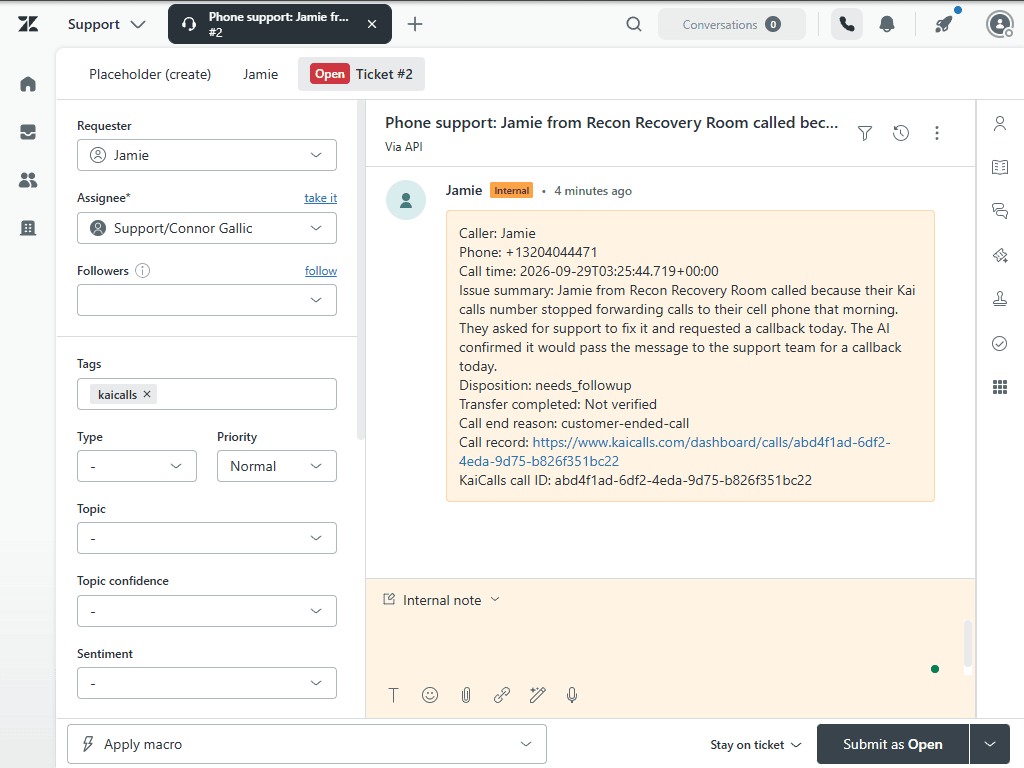
- Caller details and a summary on the ticket
- One click back to the call record
- Receipts that show whether the ticket was confirmed
Supported Help Desks
Zendesk Support
- One ticket per completed inbound customer call
- Private note with summary and call-record link
- Your saved group, priority and tags
- Needs Suite, or Support plus Talk Partner Edition
ServiceNow
- Incident, customer service case or work order
- Created during the call
- Matches the caller by phone or email
- Instance URL plus login or OAuth token
Freshdesk, Help Scout, Intercom and others
- No native KaiCalls connection
- Use your help desk’s create-ticket action
- You map the fields
- Test one ticket before turning it on
Integration Methods
Native connection
Zendesk Support and ServiceNow connect in Settings → Connections. An admin approves access once.
- No code
- Duplicate check on every call
- Delivery receipts you can check
- Zendesk and ServiceNow only
- Zendesk policy covers all inbound customer calls
Zapier
The KaiCalls Zapier app fires on a completed call or a new lead. Pair it with your help desk’s create-ticket action.
- Works with most help desks
- Filter which calls become tickets
- No code
- You map the fields
- Timing and limits depend on your Zapier plan
Signed webhooks
KaiCalls sends signed JSON to your HTTPS endpoint, and your code creates the ticket.
- Any ticket format
- Any filter logic
- Signature to verify the sender
- Needs a developer
- You maintain the code
Step-by-Step Setup
- 1
Decide which calls become tickets
The native Zendesk policy covers every completed inbound customer call, including sales calls and wrong numbers. If your line mixes sales and support, use a Zapier or webhook filter instead.
- 2
Connect your help desk
Open Settings → Connections in KaiCalls. For Zendesk, type your subdomain and have a Zendesk admin approve ticket access. For ServiceNow, add your instance URL and credentials.
- 3
Set ticket defaults
For Zendesk, pick an optional group, a default priority and tags. KaiCalls uses these saved defaults. It does not pick urgency from what the caller says.
- 4
Check your help desk’s auto-replies
A trigger that emails the requester can confuse a caller who never emailed you. Review those rules before your first test.
- 5
Make a test call
Call your KaiCalls number from a phone outside your team. Then find the receipt in KaiCalls and open the ticket in your help desk.
The Zendesk setup guide has screenshots of each screen.
What Lands on the Ticket
A planning checklist for the Zendesk connection. What arrives depends on what the caller says.
| From the call | On the ticket |
|---|---|
| Caller name | Requester or private note |
| Caller phone number | Private note |
| Caller email, if given | Requester (Zendesk) |
| Call summary | Subject and private note |
| Call time and outcome | Private note |
| Transfer confirmed or not | Private note |
| Link to the call record | Private note |
| KaiCalls call ID | Matching key: one call, one ticket |
Best Practices
One call, one ticket
KaiCalls checks Zendesk for a ticket with the same call ID before creating one. If you build a webhook flow, deduplicate on event_id too.
Tame auto-replies
KaiCalls adds a private note and never emails the caller itself. Your own help desk triggers might, so check them.
Own the failure alert
When the help desk rejects the login, KaiCalls marks the connection for attention. Make sure someone on your team watches for it.
Keep the call one click away
The recording and transcript stay in KaiCalls behind the call-record link, so your team opens them only when needed.
Troubleshooting
No ticket after a call
- Confirm ticket creation is turned on. New Zendesk connections start with it off.
- Check it was an inbound customer call. Demo and test-mode calls never open tickets.
- Look at the receipt in Settings → Connections for the error.
- Reconnect if the help desk login expired.
Sales calls showing up as tickets
- The native Zendesk policy covers every inbound customer call. There is no support-only filter yet.
- Turn the policy off and use a Zapier or webhook filter if only some calls belong in the queue.
Caller got an email they did not expect
- KaiCalls does not send ticket emails. Check your help desk triggers for new-ticket notifications.
Ticket has no requester email
- Kai only sets an email the caller actually gave. Otherwise the details stay in the private note.
FAQ
Which help desks does KaiCalls connect to directly?+
Zendesk Support and ServiceNow. Zendesk gets a ticket after each completed inbound customer call once an admin turns ticket creation on. ServiceNow gets an incident, customer service case or work order during the call. Other help desks connect through Zapier or signed webhooks.
Can I connect Freshdesk, Help Scout or Intercom?+
Not natively. Use the KaiCalls Zapier app or a signed webhook with a create-ticket action your help desk offers, then test the first ticket.
Does every call become a Zendesk ticket?+
Only after a KaiCalls admin turns it on. The automatic policy covers every completed inbound customer call, including sales calls and wrong numbers.
Can Kai answer callers from my Zendesk Help Center?+
Not through the Zendesk connection today. It has ticket access only. Add your answers to Kai knowledge in KaiCalls instead.